How it works
How CitadelOps runs your first task.
CitadelOps is hosted automation for your castle game: supported tower attacks, events, recruitment, production and castle upkeep. This guide explains your first Auto Towers task before you add game credentials.
Create your account · See pricing
Your first Auto Towers task, step by step
Before you start, you need a CitadelOps account, an active credit or a free trial, a connected castle game account on a supported world, stationed troops and at least one suitable commander. Start with one castle and a short schedule so the first result is easy to check.
Start with the six steps below, then review the task status and first results. Add game credentials only in the private Account Center form, never in Discord.
- One credit covers 30 calendar days for one hosted account.
- Auto Towers uses its own per-castle troop and commander choices. It does not ask you to select a general Attack Preset.
- A schedule permits the task to run; troops, commanders, targets, cooldowns and limits still decide whether it can launch.
-
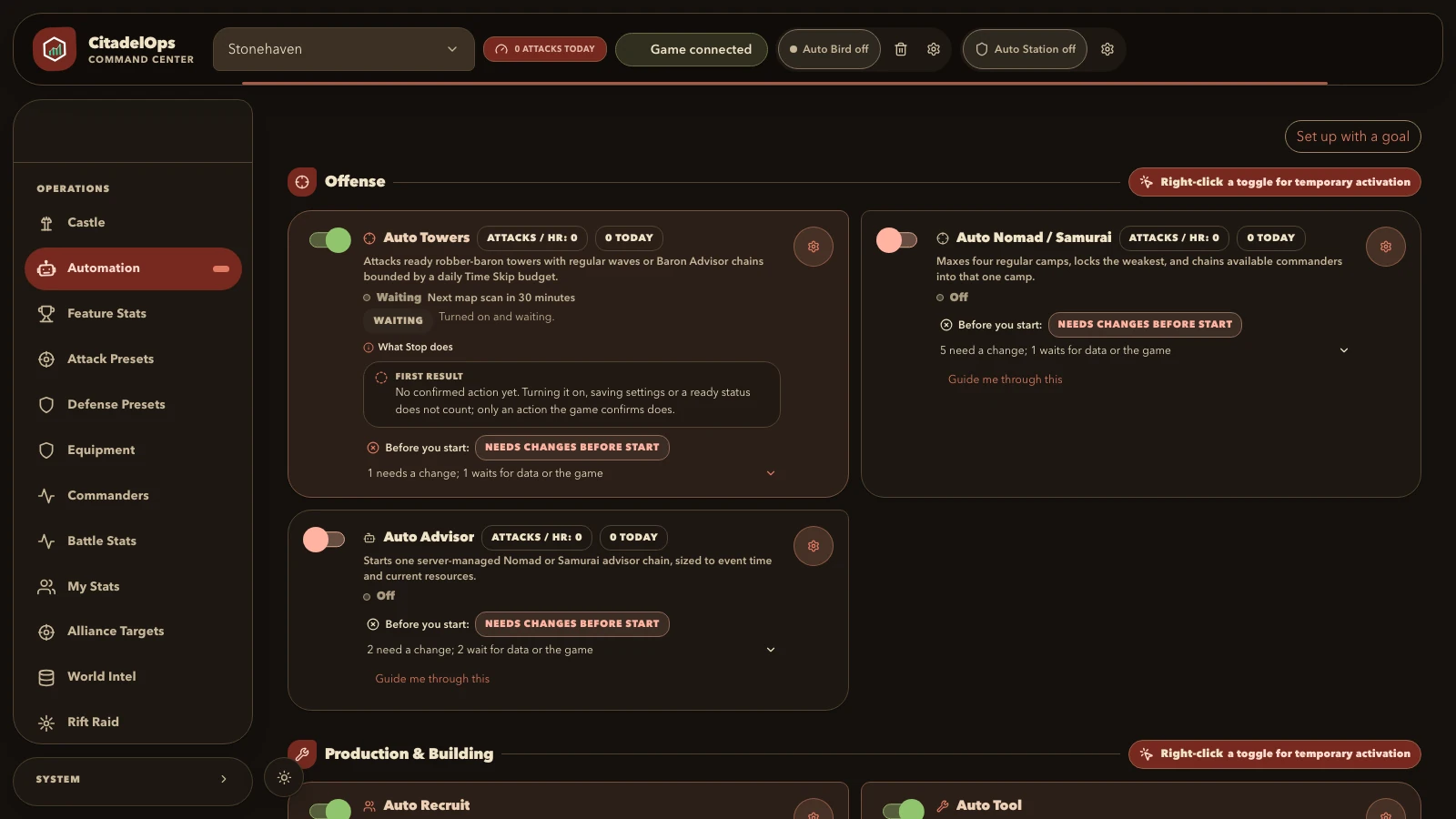
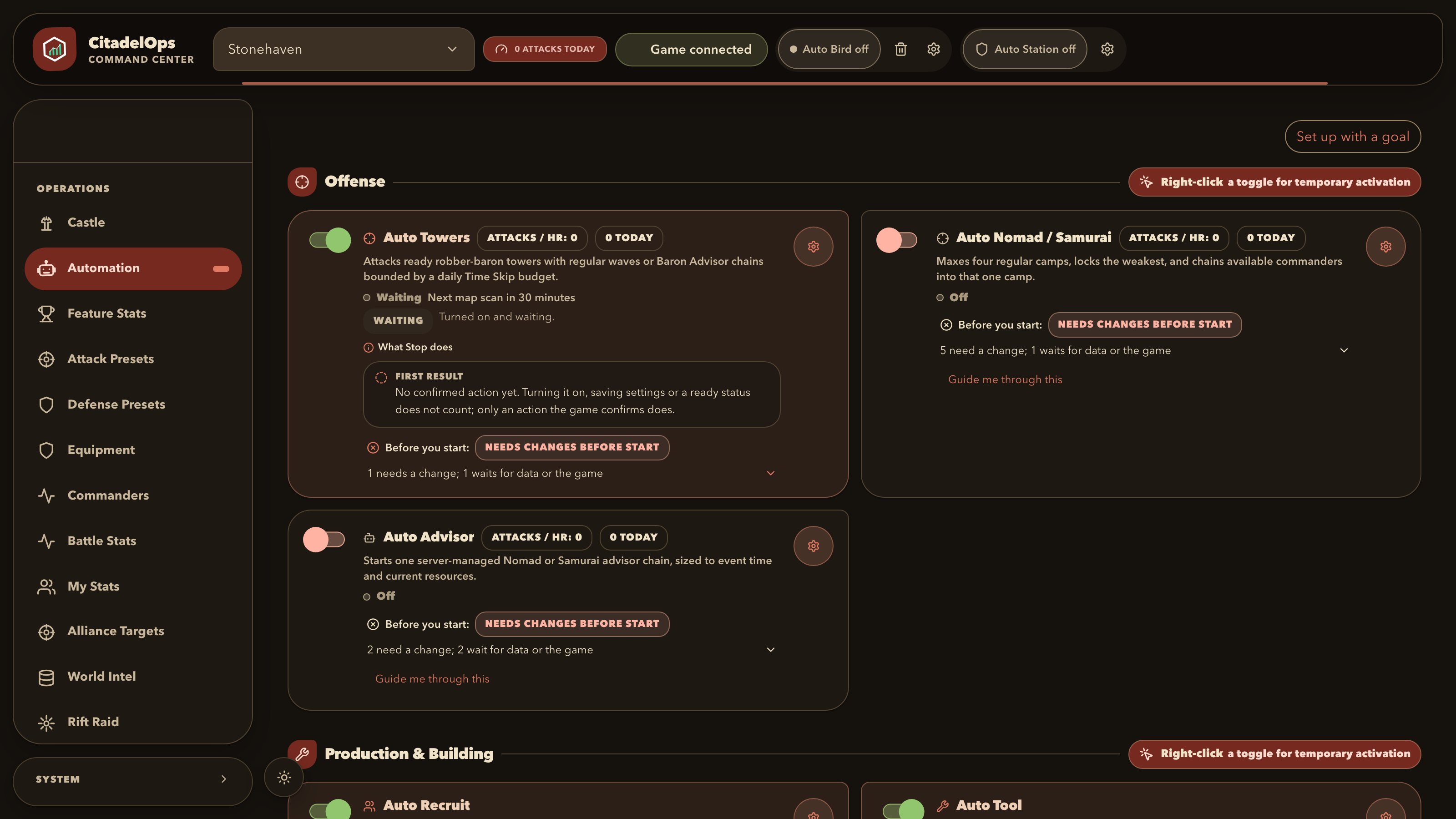
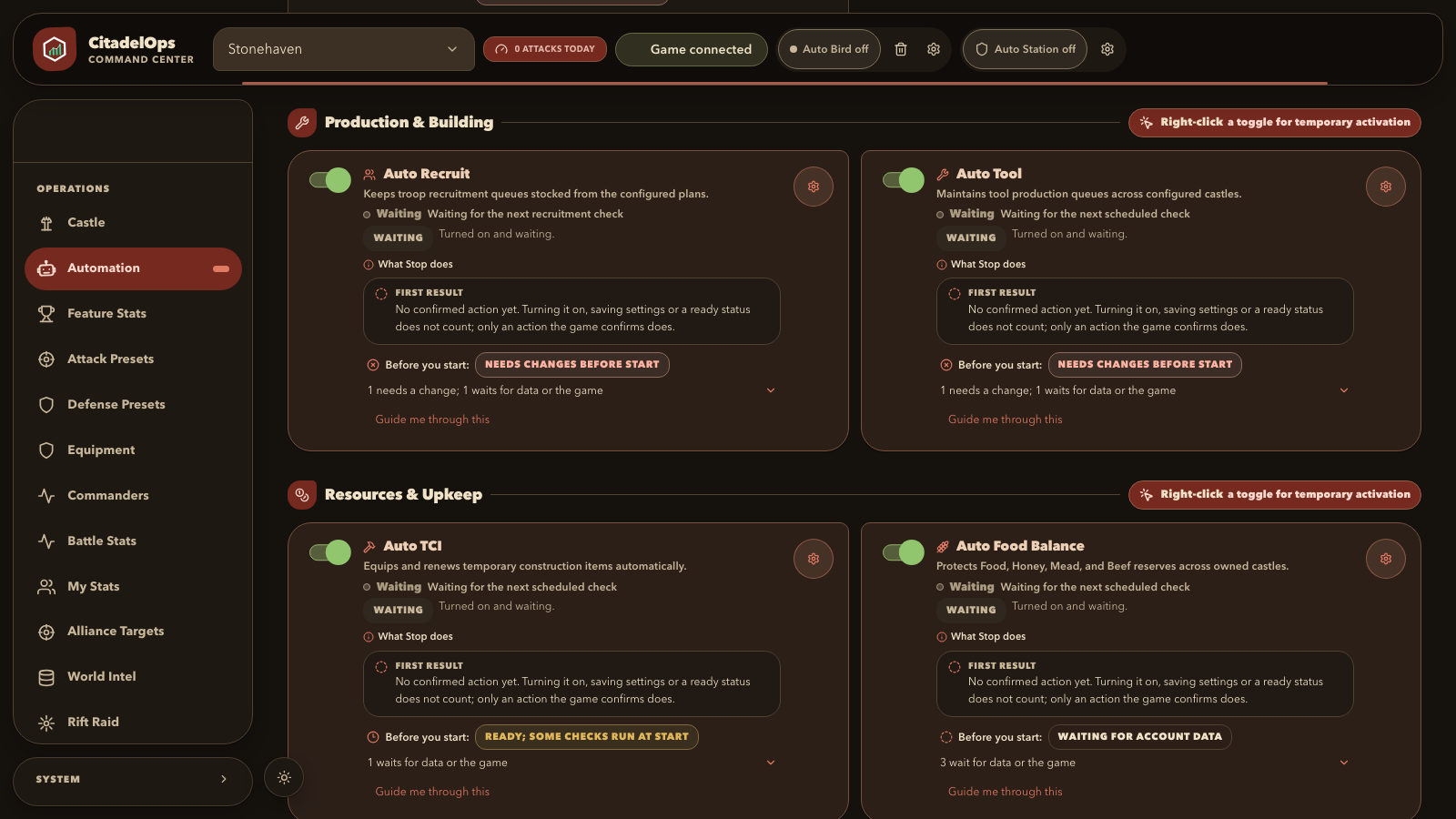
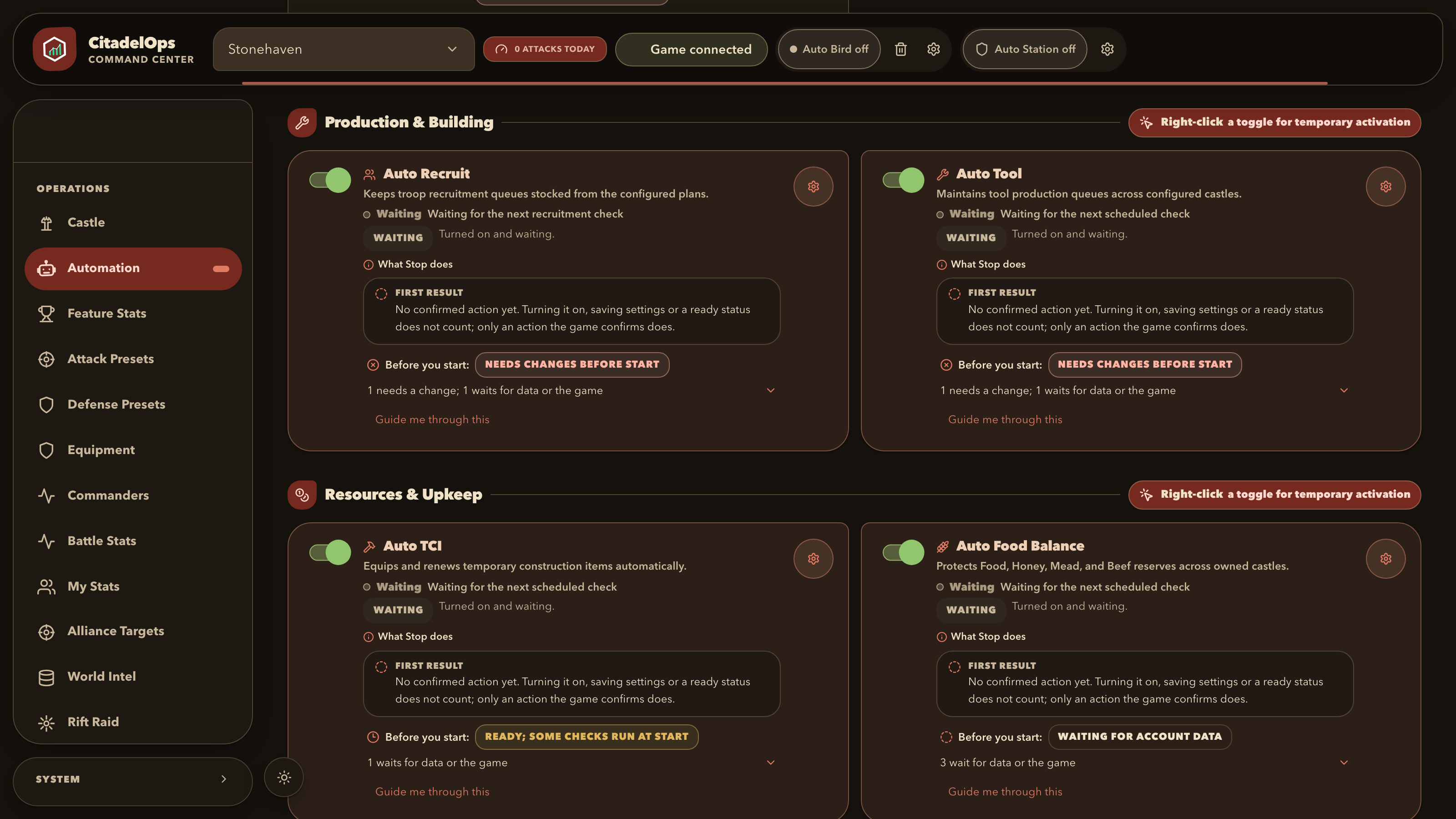
Open Automation and find Auto Towers
Open the hosted command center, choose Automation, and find the Auto Towers card. Its switch controls the whole task; the status line explains whether it is disabled, waiting or able to work.
Check: Keep the task off while you finish the first setup.
Illustrative example with fictional data Open full-size image -
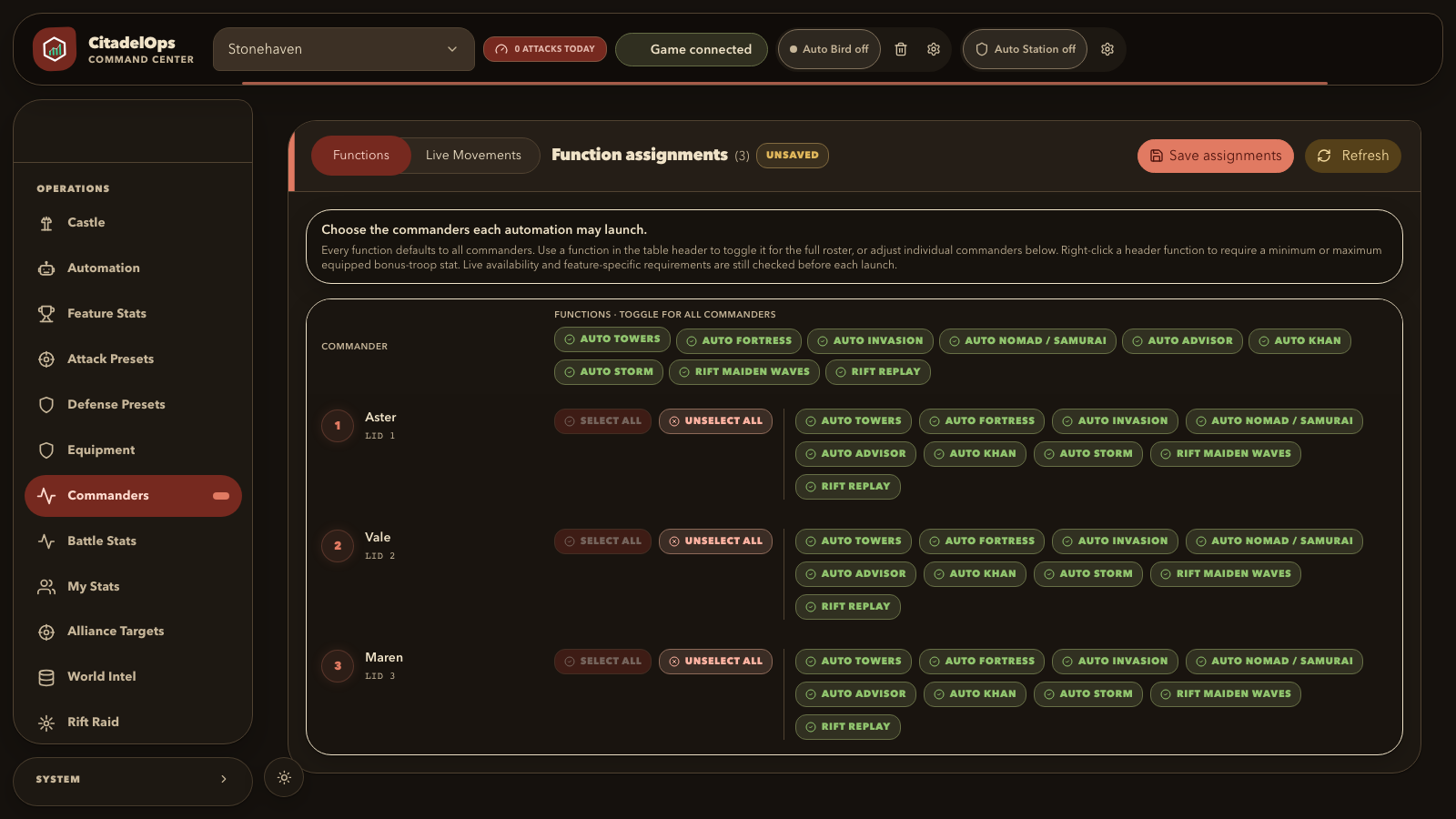
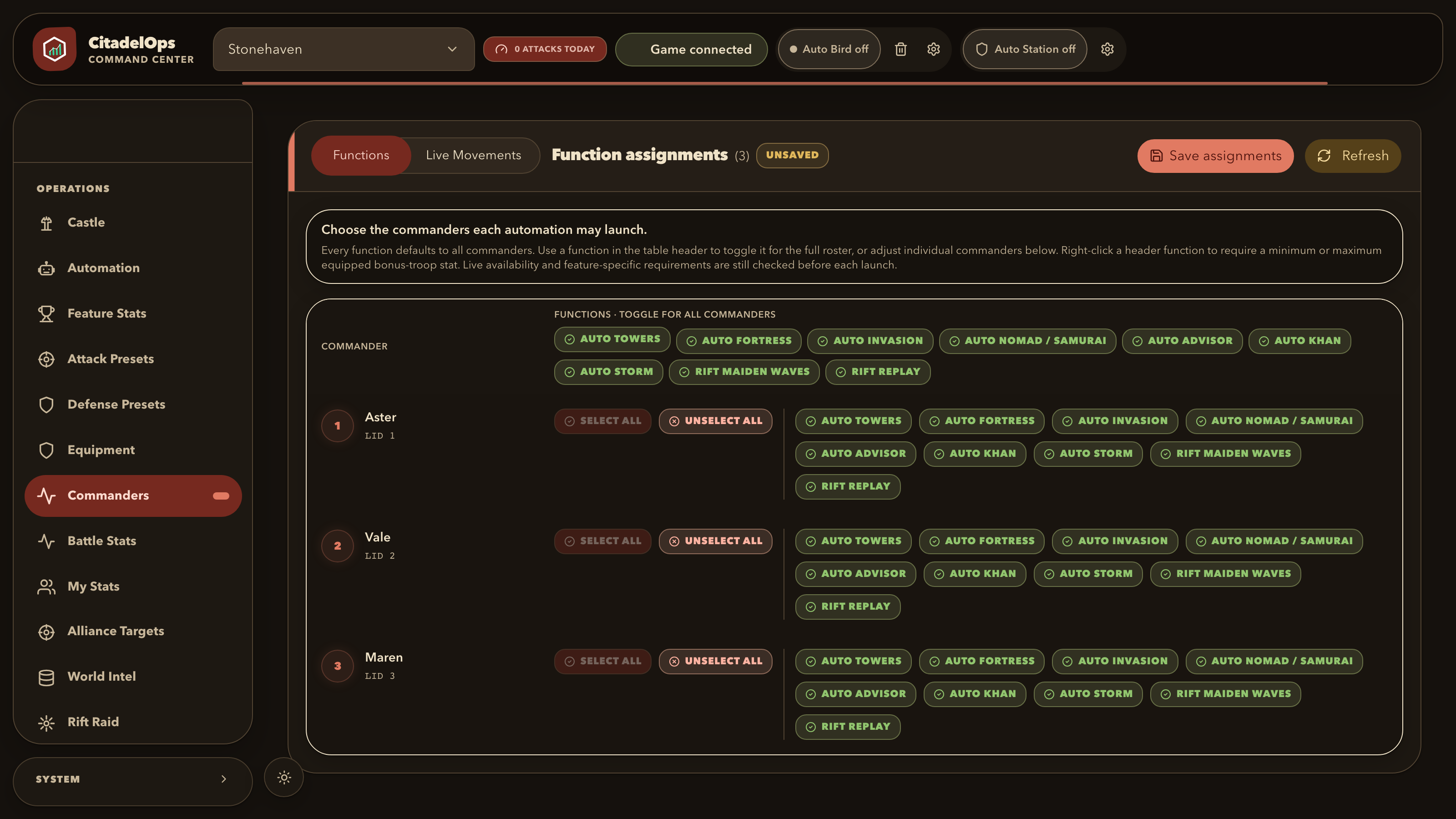
Assign tower commanders
Open Commanders and allow Auto Towers on the commanders it may use, then click Save assignments before leaving the page. The task launches only with an available selected commander. If Maiden-supported only is enabled for a castle, that commander must also carry the supported maiden relic.
Check: Commander assignment is separate from the general Attack Presets page.
Illustrative example with fictional data Open full-size image -
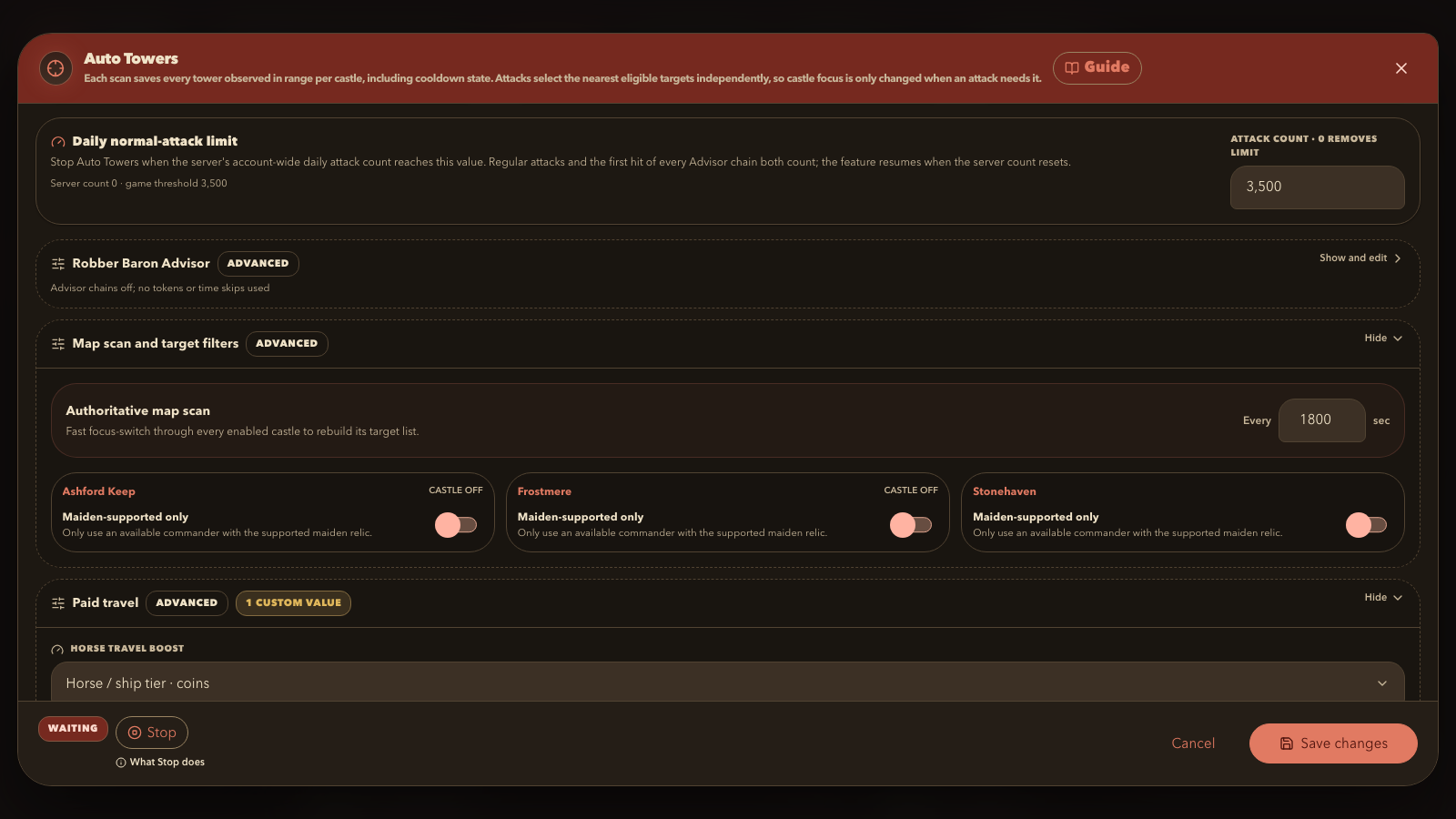
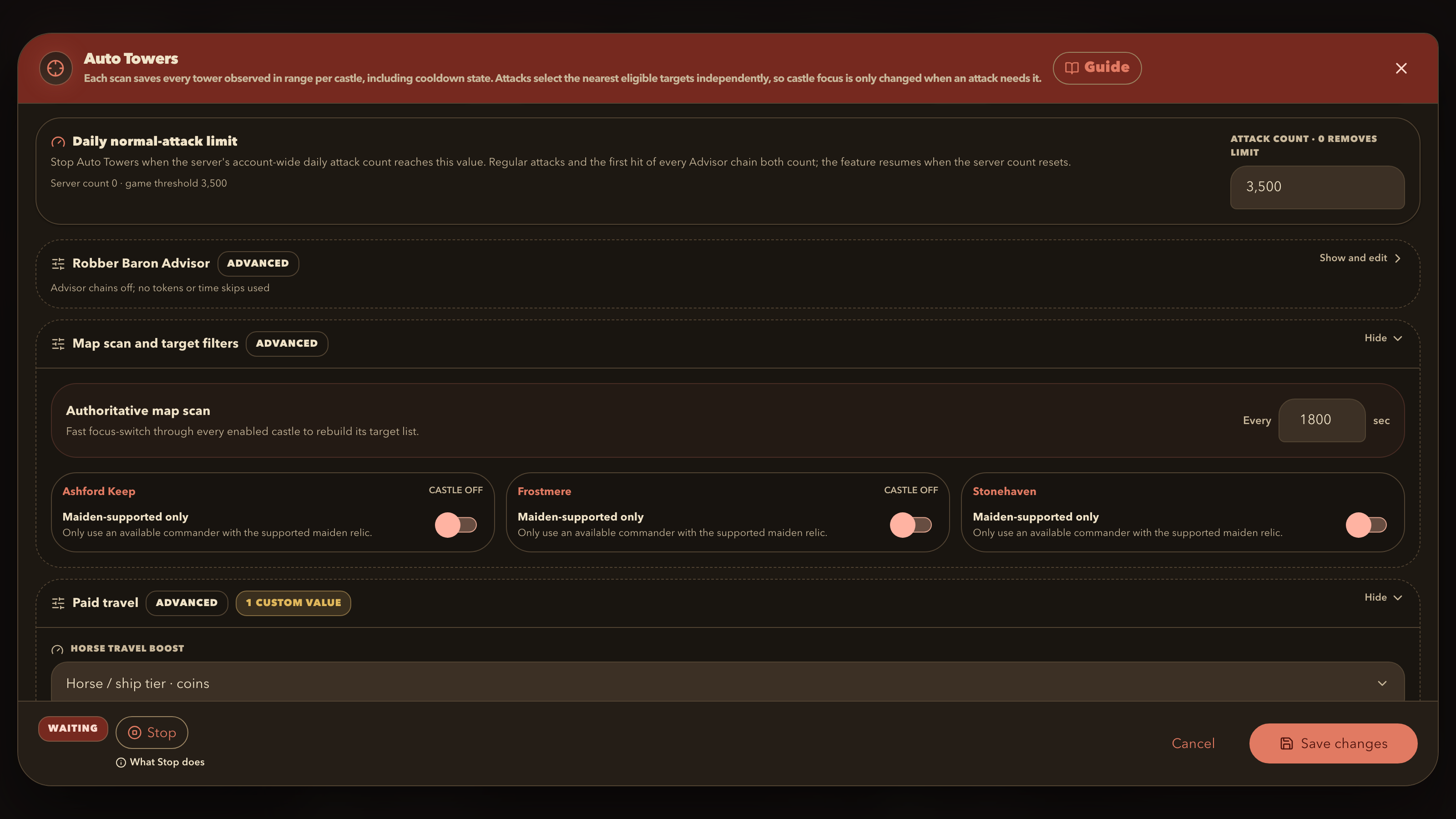
Set the scan and daily limits
In Auto Towers settings, choose a map scan interval from 1,800 to 3,600 seconds and set the daily normal-attack limit. The daily limit uses the game server's account-wide daily attack count: 0 removes this limit, and reaching the limit waits until the server counter resets.
Check: The travel boost is resolved from the source castle. Ruby travel tiers are used only when you explicitly select one.
Illustrative example with fictional data Open full-size image -
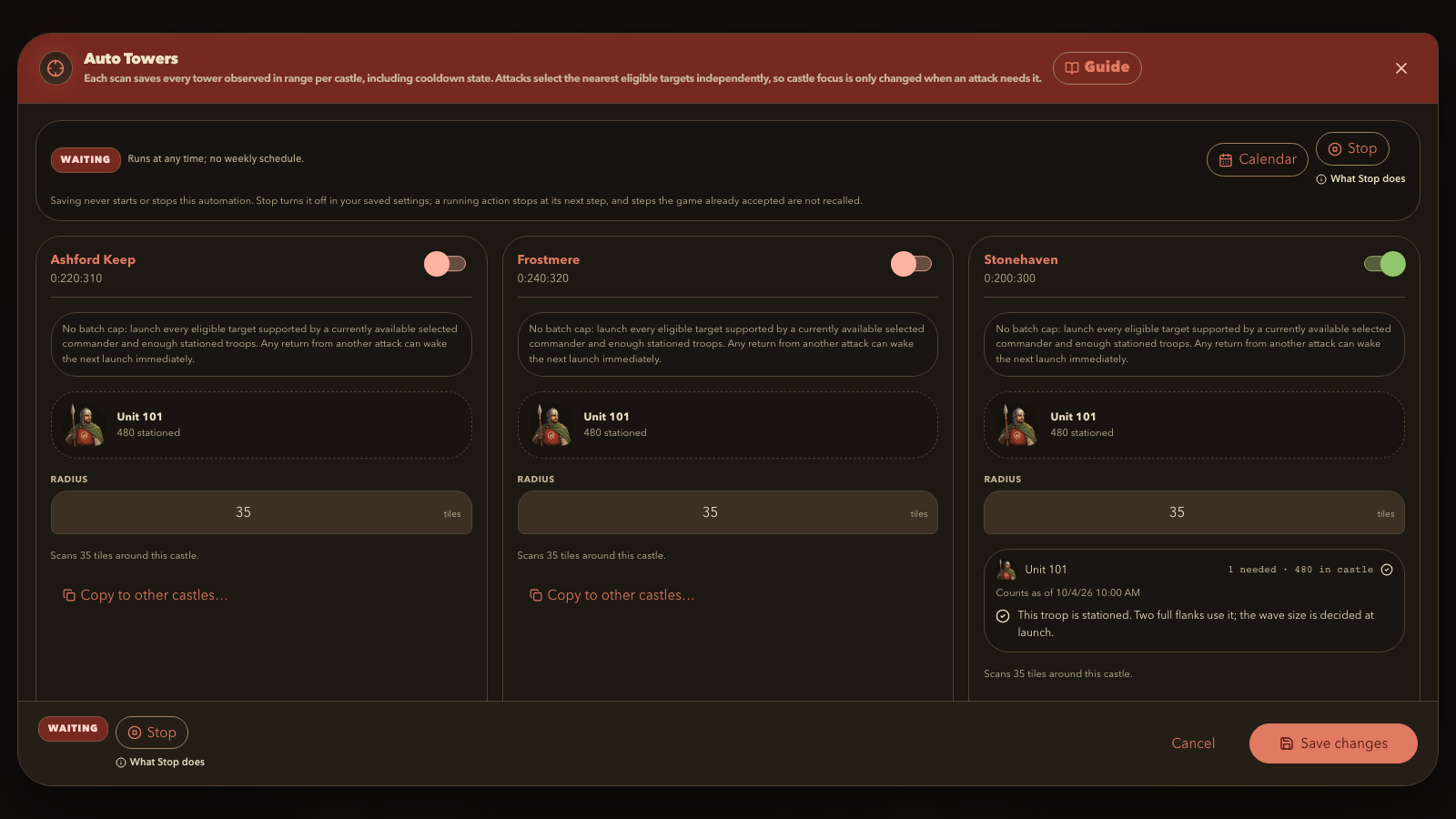
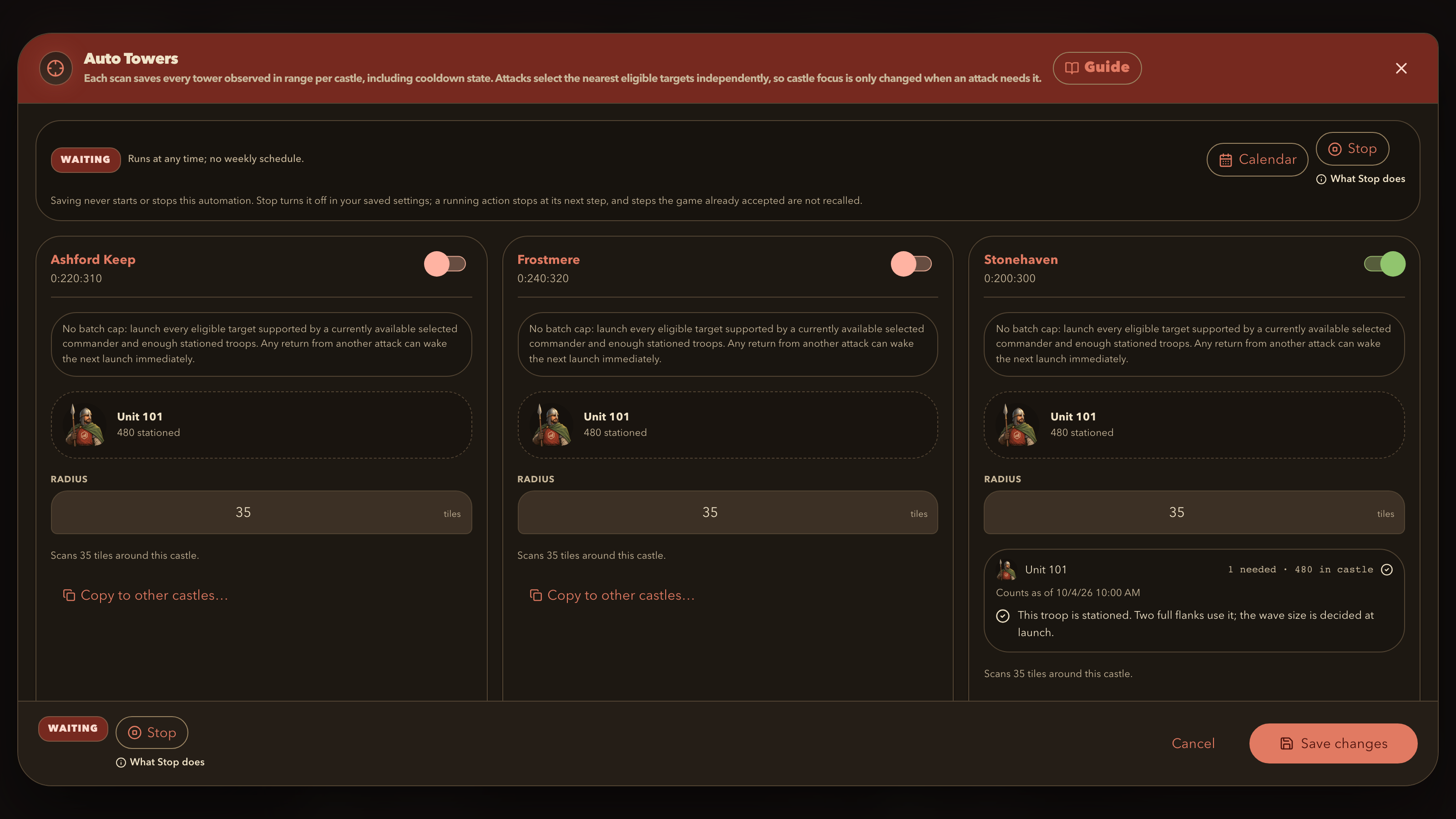
Choose one castle and troop
Enable one castle, choose one stationed troop type, set a radius from 1 to 50 tiles, and decide whether to require a Maiden-supported commander. There is no per-scan batch cap: every eligible target can launch when a selected commander and enough troops are available.
Check: Start with one castle so the first status and result are easy to trace.
Illustrative example with fictional data Open full-size image -
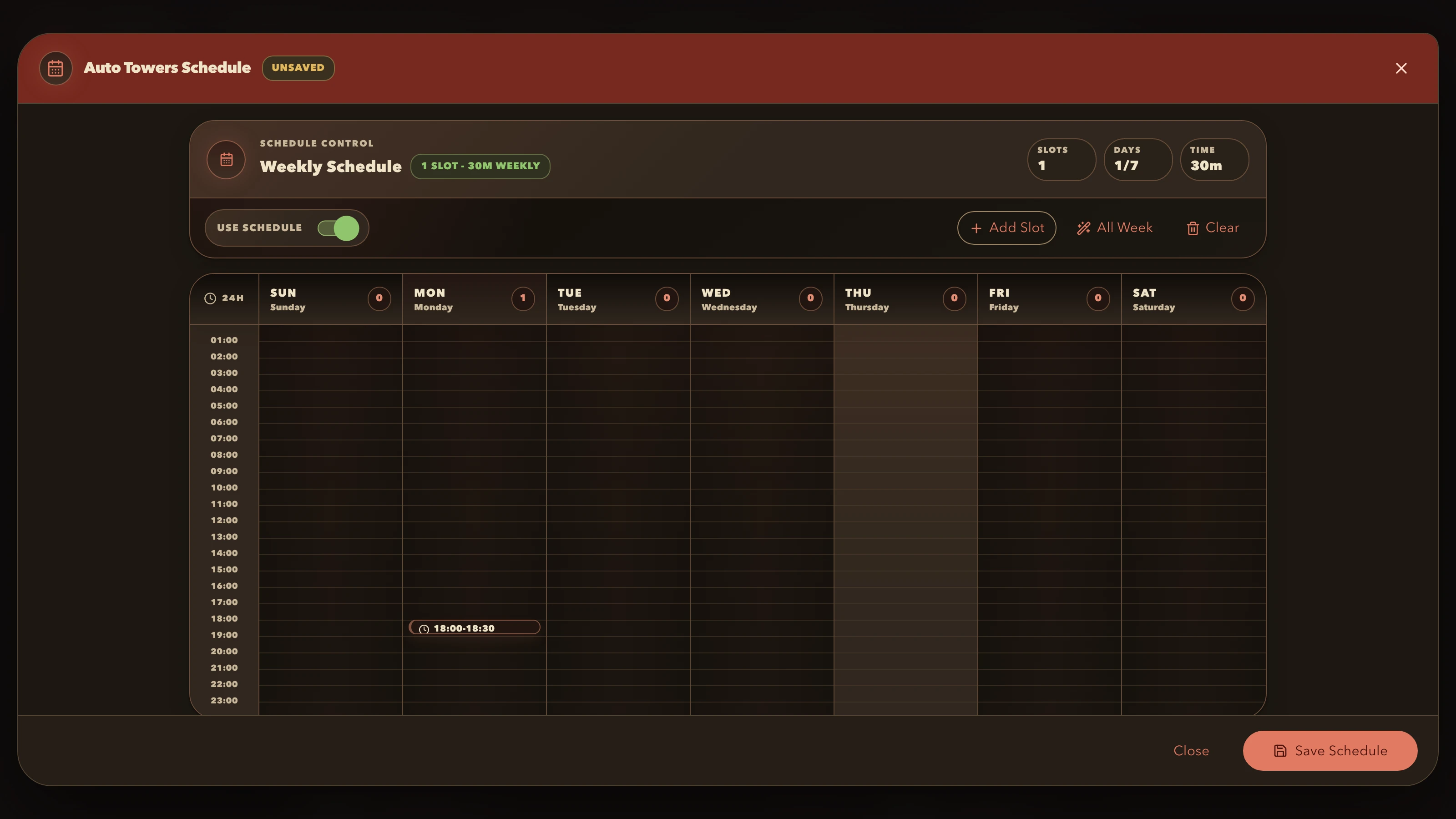
Set a short schedule and turn the task on
Use Calendar to choose when Auto Towers may run, save the settings, and return to Automation. Turn on the Auto Towers switch. The schedule permits the task to run; eligibility and limits still control each launch.
Check: A short first window makes the task's status and results easier to review.
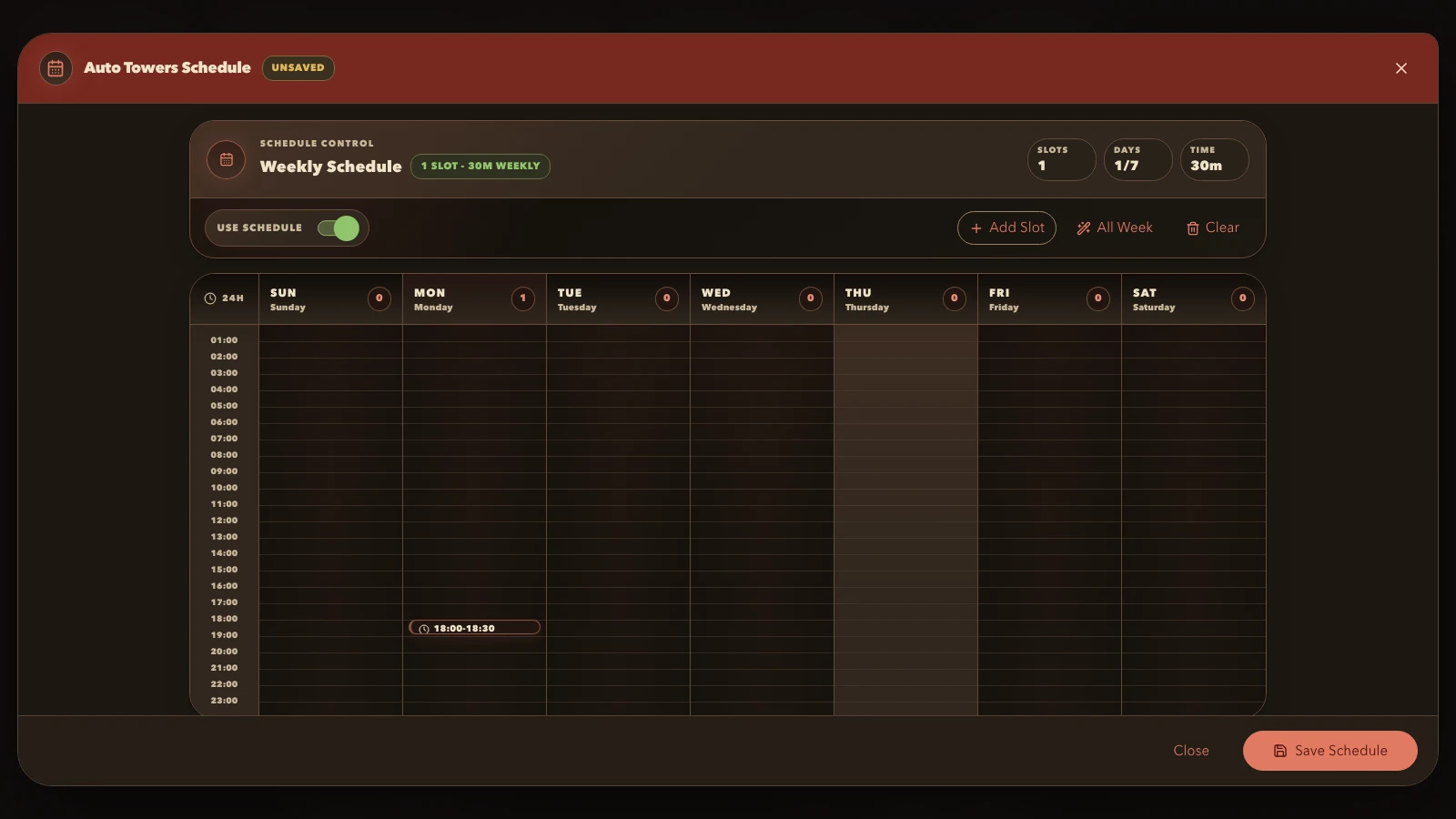
Illustrative example with fictional data Open full-size image -
Review the status and pause when needed
Return to the Auto Towers card after the first scan and read its visible status. Open Feature Stats and choose Auto Towers for recorded tower totals, then use Battle Stats to review available battle reports. To pause, turn off the Auto Towers switch; turning the task off does not recall attacks already sent.
Check: If the task is waiting, use the status reason and the checklist below before widening the schedule or adding castles.
Why an Auto Towers task can be waiting
Waiting is often a valid task state rather than an error. Auto Towers needs the hosted account connected, the task and one castle enabled, the current time inside its schedule, an eligible target in the configured radius, enough stationed troops and an available assigned commander.
A tower cooldown, a busy commander, the Maiden-supported filter, the server account-wide daily attack limit or a scheduled pause can all delay the next launch. The map scan refreshes the saved target list; returning troops or commanders can make the task eligible again.
- Read the status on the Auto Towers card before changing settings.
- Check the chosen castle's troop stock and radius, then the commander assignments.
- Check the Calendar and daily counter; reaching the limit resumes only after the game server counter resets.
Browser access and game compatibility are different
CitadelOps works with one browser castle-strategy game, signing in with a game username and password on a world in our server list.
A free CitadelOps account shows that server list before you buy anything.
If you use Steam or another sign-in method, play on an unlisted world or play a mobile edition, ask in the official Discord first.
Choose other supported routines after the first task
CitadelOps also includes supported event, recruitment, production, healing, supply and account-management workflows. Examples include Auto Nomad / Samurai, Auto Khan, Auto Invasion, Auto Storm, Faction event camp, Auto Recruit, Auto Tool, Auto Food Balance and Auto Hospital.
Each routine has its own prerequisites and waiting states. Some attack routines use saved Attack Presets and score goals; Auto Towers uses its own castle troop, radius and commander controls. Review one routine at a time and keep its first schedule small.
- Event routines wait when their event or target is unavailable.
- Recruitment, production and supply tasks wait for queues, stock, resources or reserve rules.
- Game updates or a service interruption can temporarily affect supported tasks.
You choose what happens.
A bot is a tool that repeats game tasks for you. CitadelOps runs on our computers, so there is nothing to install on yours. You use this website to choose tasks, change settings and check progress.
You still play with your own castle game account. Your troops, commanders, supplies and the game's normal rules still matter. Start with one feature, check how it works, then add more when you are ready.
- A preset is a saved setup, such as the troops and tools you want to use for an attack.
- A reserve is the amount you want to keep. For example, a food reserve is food you do not want a task to send away.
- A schedule sets the days and times a feature is allowed to run.
Automations and planning tools
Choose one routine at a time, review its prerequisites and set the schedules and limits that suit your account.
- Auto Towers: Repeat nearby tower attacks.
- Auto Recruit: Keep recruiting the troops you need.
- Auto Tool: Keep making your chosen tools.
- Auto Food Balance: Share supplies between your castles.
- Auto Hospital: Keep hospital healing moving.
- Auto Nomad/Samurai: Level and attack Nomad or Samurai event camps.
- Auto Khan: Chain Khan camp attacks and defend retaliation at your main castle.
- Auto Advisor: Start one resource-sized Nomad or Samurai Advisor run.
- Auto Invasion: Attack Foreign Lords and invasion camps toward your score target.
- Auto Storm: Manage your Storm castle, attacks and rewards.
- Faction event camp: Supply and run your faction event camp.
- Auto Buyer: Buy selected items and renew useful bonuses.
- Crafting resources: Keep advanced crafting supplied.
- Auto TCI: Keep construction items equipped.
- Auto Equipment Cleanup: Clear unwanted equipment from storage.
- Auto Bird: Keep selected troops away on a schedule.
- Auto Station: Move eligible troops before an incoming attack.
- Auto Fortress: Supply troops and attack ready fortresses.
- Auto Booster: Buy the daily fortress-speed boost.
- Attack and defense presets: Save a setup to use again.
- Equipment and commanders: Review what your army can use.
- World Intelligence: Look up players, alliances and event information.
- Schedules and task controls: Choose when each job may run.
- Castle overview: Check your troops, tools and supplies.
- Feature Stats, Battle Stats and My Stats: See what has happened and what has changed.
- Alliance Targets: Find and review player castles.
- Rift: Prepare and repeat Rift attacks.
- Settings, Patch Notes and Support: Manage preferences and find help.
How to get started
You need an existing castle game account. Your CitadelOps login is separate from your game login.
-
Create your CitadelOps account
Choose Create your account. Sign up with Google or a passkey. A passkey uses your device's usual unlock method, such as a fingerprint, face scan or PIN.
-
Arrange your credits
Start with the free 7-day trial. Choose a pack on the pricing page and contact support to arrange it. One credit pays for 30 days on one game account. A single credit costs $20; opening a pricing inquiry does not complete a purchase.
-
Add the game account you already use
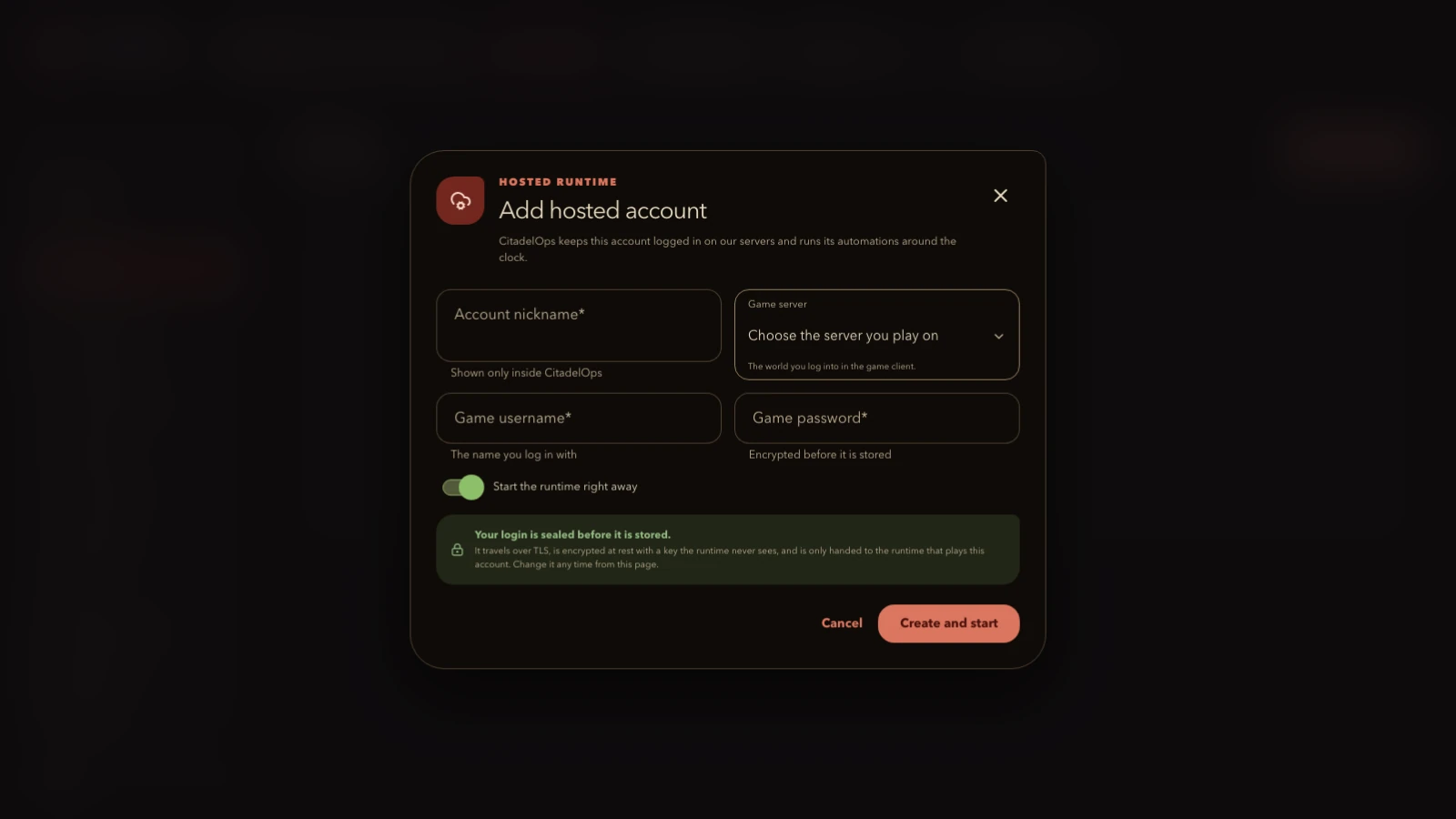
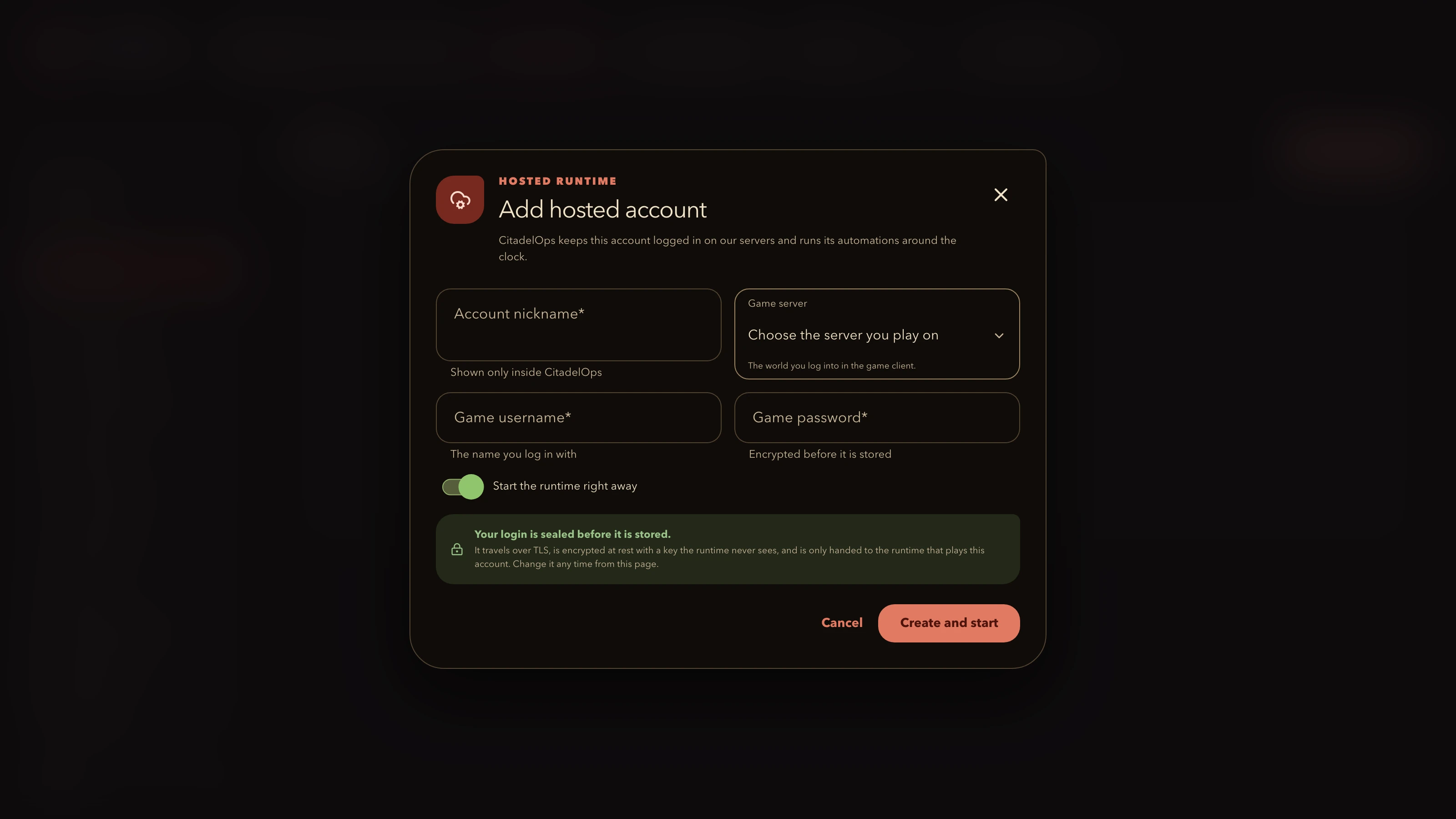
In Account Center, choose Add your first account or Add account. Give it a nickname, select the game server you play on, and enter your game username and password in the private form.
-
Open your command center
Once the account is connected, choose Open on its account card. Most features are in Automation. Auto Bird and Auto Station also have controls at the top of the command center.
-
Choose one feature to start
Read its section above, open its settings and choose what you want it to do. Save your choices before turning it on. Check the first results before enabling more features.
Check your first run
For example, if you start with Auto Towers:
-
Keep the first setup small
Choose one castle and the troops and commanders you want to use. Set a comfortable search radius, daily attack limit and short schedule.
-
Watch what happens
Check that it uses the castle and troops you intended. Review the first attack results and the supplies used.
-
Adjust before doing more
If something is not what you expected, turn the feature off and review the settings. Once you are happy with the results, add more castles or extend the schedule.
Set realistic expectations for automation
CitadelOps takes care of repeated actions. Your account level, troops, equipment, settings and active events affect the results.
- Check in regularly, especially after changing a setup or starting a new event.
- Features may wait for troops, resources, a target's timer or the next time in your schedule.
- Game updates or service interruptions can affect which tasks are available.
- Paying for CitadelOps gives you access to the service. It does not buy a guaranteed amount of rubies, event points or rewards.
Credits pay for hosted access, not promised results
One credit covers one hosted account for 30 calendar days. Current support-arranged packs are 1 credit for $20, 5 credits for $75 and 10 credits for $100. Two accounts running during the same 30-day period need two credits.
Credits provide access to supported CitadelOps workflows. They do not guarantee rubies, event points, rankings, rewards, uninterrupted availability or a ban-free account. Results depend on your game account, settings, supplies, targets and active events.
- Create or sign in to your CitadelOps account before arranging credits.
- Use the pricing page to compare packs and open the official Discord invite.
- The inquiry does not charge you or complete a purchase.
Questions about your first task
Can CitadelOps continue after I close the browser? Yes. Hosted tasks can continue on the service while your device is off, subject to the task's schedule, settings, connection and game conditions.
Can I review the product without credentials? Yes. This guide and the homepage use public-safe fictional examples. Add credentials only inside the private Account Center form, never in Discord.
- Do I need to install anything, and can I close my browser?
- No. CitadelOps runs on our computers. You use your browser to manage it, and your enabled tasks can keep running after you close the browser or turn off your computer.
- Will it work with my game account?
- CitadelOps works with one browser castle-strategy game, signing in with a game username and password on a world in our server list. A free CitadelOps account shows that server list before you buy anything. If you use Steam or another sign-in method, play on an unlisted world or play a mobile edition, ask in the official Discord first.
- Why is a feature waiting?
- Check that your game account is connected, the feature is turned on and its schedule allows it to run now. Then check its settings, troops, resources and target availability. Read the status shown in the command center; if it is unclear, ask support for help.
- Does one credit cover all my accounts?
- No. One credit covers one game account for 30 calendar days. Two accounts need two credits for the same period. Check the pricing page for larger packs.
- Can I see the interface before adding my game login?
- The homepage includes a preview with fictional data. It shows the layout without connecting to a game account; it is not a live demonstration of your results.
- Where do rubies and rewards come from?
- Rewards come from the game activities your account completes. Your troops, equipment, event choices and settings affect what you earn.
- Is CitadelOps an official game service?
- CitadelOps is an independent third-party tool and is not affiliated with any game publisher.
- What if I get stuck?
- Contact support with the feature name, what you wanted to do and what happened. You do not need to explain the technology. Never send your game password or other sign-in secrets in Discord or email.
- Is there a free trial?
- Free trial: each game account that hasn't run on CitadelOps hosting gets 7 days free, with every feature. It starts at the first successful game login and doesn't pause. When it ends, automation stops until you use a credit. Nothing is charged automatically.